
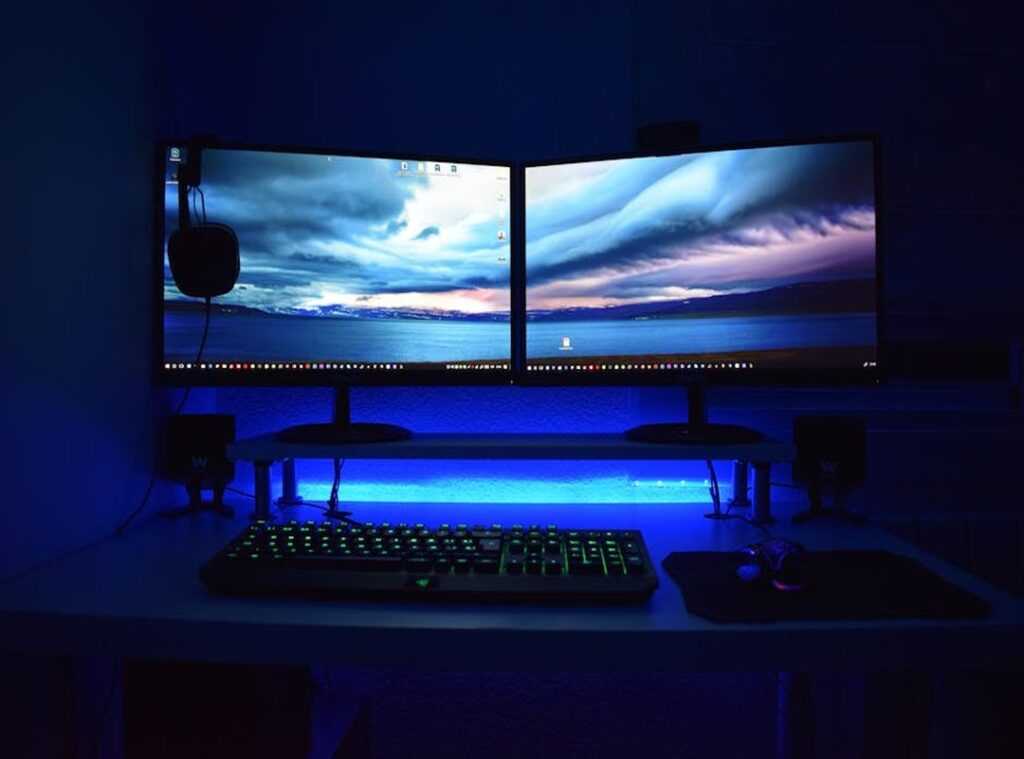
Ever felt like your single monitor is holding you back during gaming sessions? Constantly Alt-Tabbing to check Discord or guides is a pain. I know the struggle.
That’s why diving into dual monitors gaming can be a game-changer. You might wonder, is it worth the setup hassle? Absolutely.
Our deep experience in testing PC hardware configurations ensures you’re in good hands. We’ll walk you through every step. Setting up a second monitor isn’t just about more screen space; it’s about smoother gaming and multitasking.
Trust me, once you go dual, there’s no turning back. You’ll gain the confidence to tweak your setup for maximum performance. Get ready to raise your gaming experience and finally leave those cramped single-screen days behind.
Is a Second Monitor for Gaming Really Worth It? (Spoiler: Yes)
Getting a second monitor for gaming? Absolutely worth it. I’ve been there, and I can’t imagine going back.
Sure, “more screen space” is the obvious advantage, but let’s dig deeper.
You know what I mean? It’s like having a backstage pass while still rocking the concert.
First off, a second monitor lets you keep the main game front and center. I hate pausing my game just to check Discord or change a song on Spotify. With dual monitors, you keep that uninterrupted immersion intact.
Then there’s multitasking. Ever tried using game guides or interactive maps for Elden Ring or Tarkov? With a second screen, you can do this without tabbing out, keeping your flow steady.
Picture this: watching a stream on one screen while playing a casual game on the other. Multitasking mastery at its best.
Streamers, listen up. A second monitor is a must for managing your broadcast software and chat. It’s not just helpful; it’s non-negotiable.
You can’t keep an eye on everything without it.
And while we’re talking about tech, if you’re into setting up vr first time users, you’ll find dual monitors a game-changer. Dual monitors gaming setups aren’t just for show; they’re for the serious gamer.
The Hardware You’ll Need: A No-Nonsense Checklist
So, you’re diving into the world of dual monitors gaming. Good choice. It changes everything.
But let’s not get ahead of ourselves. You need the right gear. Here’s your no-nonsense guide.
First up, the GPU. Your graphics card is the backbone of this setup. Most modern GPUs have multiple ports like HDMI and DisplayPort.
They can handle two monitors without breaking a sweat. But, check your card’s ports. You don’t want to be caught off guard when it’s time to plug in.
Now, monitors. Should they match? Honestly, it depends.
Matching them can give a smooth look, but it’s not a must. Different resolutions can work too. Think about what you need.
A 144Hz monitor is great for gaming, while a 60Hz secondary might be perfect for browsing or streaming.
Cables are next. Don’t underestimate them. The right cable makes a difference (no one wants lag).
DisplayPort and HDMI are your main options. For high refresh rates, go with DisplayPort. It’s reliable and keeps your graphics smooth.
Desk space is often overlooked, but it’s key. Measure it. Seriously.
You might need a dual-monitor arm to save space and improve your setup. It looks cool and keeps things neat. Win-win.
So, are you ready? With these tips, you’ll have a killer setup without the hassle. Just remember, it’s all about finding what works for you.
And trust me, once you go dual, you won’t go back.
Plugging In to Perfection: Dual Monitor Gaming Setup
So, you want to set up dual monitors for gaming. Trust me, it’s not as daunting as it seems. Let’s break it down.
First, the physical connection. This is key: plug your monitors into the graphics card, not the motherboard. Got it?
Good. People often get this wrong and wonder why their setup looks like something out of a 90s sitcom.
Next, to Windows configuration. Right-click on your desktop and select Display settings. Click ‘Identify’ to see which screen is which (this will save you from craning your neck later).
Drag the monitor icons to match your actual setup. Use the ‘Extend these displays’ option. This is where the magic happens.
It’s the difference between seeing everything at once or living in Alt-Tab land.
Select your main gaming monitor and check the ‘Make this my main display’ box. You’re almost there. If you want to tweak further, head over to the NVIDIA Control Panel or AMD Software.
This is where you can play with color profiles and custom resolutions. Feeling adventurous? Go for it.
But don’t mess things up unless you’re sure, or you’ll end up with a headache (literally).
Want to dig deeper into graphics settings? This guide can help. It’s packed with tips to improve your setup even further.
Setting up dual monitors isn’t just about aesthetics. It’s about creating a gaming environment that feels immersive and smooth. So, get it right.
You’ll thank me later when you’re not constantly adjusting your screen.
Mastering Dual-Monitor Workflow: Pro Tips You Need
Let’s talk about dual monitors. If you’re into dual monitors gaming, you’ve probably faced the annoying cursor drift. It’s a classic pain when in borderless windowed games.
The fix? Dual Monitor Tools (DMT). This free app lets you lock your cursor to one screen. Hit a hotkey and boom.
Simple, right?
Now, onto window management. Windows Snap features are good. Drag your screen to the edge, and it snaps into place.
But for something smarter, check out PowerToys’ FancyZones. This allows you to create custom layouts. Arrange your workspace, avoid clutter.
Trust me, it makes a difference.
Finally, consider performance impacts. Running video or heavy apps on your second monitor? It might slightly impact game performance.
Minor, but noticeable if you’re picky. Turning off hardware acceleration in apps like Discord or Chrome helps. It’s a neat trick, especially if every frame counts.
And we all know it does.
Why not give these tips a shot? Because if we’re gonna game, let’s game right. Two screens are better than one.
But you need to manage them smartly. It’s not about having more space; it’s about using it well.
Dual Monitors: Quick Fixes for Common Glitches
Problem: Your second monitor is black. Solution: First, check those cables. Still no luck?
Update your GPU drivers. That often does the trick.
Colors not matching between screens? Calibrate using Windows tools or your monitor settings. It’s usually a quick fix.
Games launching on the wrong monitor can be a real pain. Make sure your primary display is set correctly in Windows. Dual monitors are great for gaming, but they can be finicky.
Pro tip: Keep your drivers updated regularly. It saves time and headaches. Got other issues?
It’s usually not as complicated as it seems.
Unleash Your PC’s Full Potential
Why settle for chaos when you can have control? Switching from a cluttered single screen to a streamlined dual-monitor setup is a game-changer. I get it, constant task-switching kills your flow.
But it’s not just about gaming (though dual monitors gaming is a blast). This setup transforms your entire PC experience. Imagine the ease of managing tasks without breaking that immersion.
So, what are you waiting for? Clear some desk space. Dive into a more fast and solid command center now.
Visit us at tgarchivegaming.org and discover how easily you can level up your setup. Go on, open up it today.
 There is a specific skill involved in explaining something clearly — one that is completely separate from actually knowing the subject. Jelvith Rothwyn has both. They has spent years working with digital infrastructure insights in a hands-on capacity, and an equal amount of time figuring out how to translate that experience into writing that people with different backgrounds can actually absorb and use.
Jelvith tends to approach complex subjects — Digital Infrastructure Insights, Tech Setup Tutorials, Knowledge Vault being good examples — by starting with what the reader already knows, then building outward from there rather than dropping them in the deep end. It sounds like a small thing. In practice it makes a significant difference in whether someone finishes the article or abandons it halfway through. They is also good at knowing when to stop — a surprisingly underrated skill. Some writers bury useful information under so many caveats and qualifications that the point disappears. Jelvith knows where the point is and gets there without too many detours.
The practical effect of all this is that people who read Jelvith's work tend to come away actually capable of doing something with it. Not just vaguely informed — actually capable. For a writer working in digital infrastructure insights, that is probably the best possible outcome, and it's the standard Jelvith holds they's own work to.
There is a specific skill involved in explaining something clearly — one that is completely separate from actually knowing the subject. Jelvith Rothwyn has both. They has spent years working with digital infrastructure insights in a hands-on capacity, and an equal amount of time figuring out how to translate that experience into writing that people with different backgrounds can actually absorb and use.
Jelvith tends to approach complex subjects — Digital Infrastructure Insights, Tech Setup Tutorials, Knowledge Vault being good examples — by starting with what the reader already knows, then building outward from there rather than dropping them in the deep end. It sounds like a small thing. In practice it makes a significant difference in whether someone finishes the article or abandons it halfway through. They is also good at knowing when to stop — a surprisingly underrated skill. Some writers bury useful information under so many caveats and qualifications that the point disappears. Jelvith knows where the point is and gets there without too many detours.
The practical effect of all this is that people who read Jelvith's work tend to come away actually capable of doing something with it. Not just vaguely informed — actually capable. For a writer working in digital infrastructure insights, that is probably the best possible outcome, and it's the standard Jelvith holds they's own work to.