
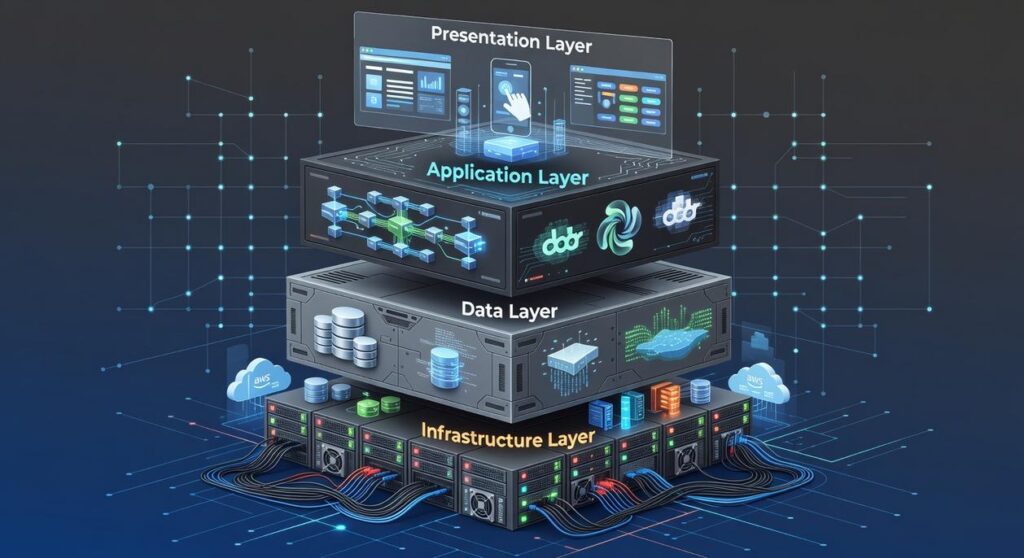
Setting up a reliable local development environment configuration can be the difference between smooth, productive coding sessions and hours lost to avoidable errors. If you’re here, you’re likely looking for clear, practical guidance that helps you build, optimize, or troubleshoot your setup without wading through outdated or overly complex advice.
This article is designed to walk you through the essential components, best practices, and common pitfalls involved in creating a stable and scalable development environment. Whether you’re working with modern frameworks, experimenting with emerging hardware, or refining legacy systems, you’ll find actionable insights tailored to real-world workflows.
Our recommendations are grounded in hands-on testing across multiple platforms and informed by industry-standard development protocols. We’ve analyzed current tooling trends, infrastructure requirements, and performance benchmarks to ensure the guidance you’re about to read is accurate, relevant, and immediately useful.
The Foundation: Core Tooling and Version Control
First things first: your terminal isn’t just a black box—it’s mission control. Modern options like Windows Terminal and iTerm2 support tabs, split panes, and GPU acceleration, which dramatically improves workflow efficiency. Pair that with a tuned .zshrc or .bash_profile (these are shell configuration files that automate aliases, environment variables, and prompts), and you eliminate repetitive friction. Think of it as sharpening your knife before cooking (yes, it matters).
Next, your IDE. A properly configured VS Code setup is non-negotiable. Extensions for linting (automated code quality checks), formatting, and debugging reduce human error and enforce consistency. Some argue lightweight editors are faster. Fair point. However, as projects scale—especially with multi-container apps—integrated debugging and extension ecosystems save hours weekly.
Then there’s Git. Beyond git init, set a global .gitignore to exclude system clutter, configure SSH keys for secure authentication, and define your user identity to maintain clean commit histories. Pro tip: consistent commit metadata prevents audit headaches later.
Finally, hardware. More RAM and higher CPU core counts significantly improve containerized workflows (Docker reports performance gains with multi-core scaling). Looking ahead, it’s likely local development environment configuration will rely even more on parallel processing as AI-assisted tooling becomes standard.
Isolation and Consistency: Mastering Virtualization and Containers
Why Containers Became the Standard
At its core, containerization means packaging an application with everything it needs—code, runtime, system libraries, and dependencies—into one standardized unit called a container. Unlike traditional virtual machines (VMs), which virtualize entire operating systems, containers share the host OS kernel. The benefit? Faster startup times, lighter resource usage, and consistent behavior across environments (no more “but it works on my machine”). According to Docker’s documentation, containers can start in seconds because they don’t require booting a full OS.
Some argue VMs provide stronger isolation. That’s true at the hardware level. However, for most development workflows, container isolation is sufficient—and dramatically more efficient.
Docker Deep Dive
To get started, install Docker Desktop, which bundles Docker Engine, CLI tools, and a GUI dashboard. Once installed, you’ll work with three core concepts:
- Images: Read-only templates defining your app and environment.
- Containers: Running instances of images.
- Volumes: Persistent storage layers that keep data safe even if containers stop or restart.
Volumes matter especially for databases. Without them, deleting a container means losing data (and nobody wants their Postgres instance disappearing like a snapped Infinity Stone).
Crafting Your First docker-compose.yml
version: "3.9"
services:
  app:
    image: node:18
    working_dir: /app
    volumes:
      - ./:/app
    command: npm start
    ports:
      - "3000:3000"
    depends_on:
      - db
  db:
    image: postgres:15
    environment:
      POSTGRES_PASSWORD: example
    volumes:
      - pgdata:/var/lib/postgresql/data
volumes:
  pgdata:
Finally, Windows Subsystem for Linux (WSL2) provides a high-performance Linux kernel running directly on Windows. Docker integrates with WSL2, enabling a near-native Linux experience while maintaining seamless local development environment configuration. In short, you get speed, compatibility, and consistency—all without leaving Windows.
Configuring Your Application Stack: Runtimes and Databases

Getting your stack right starts with version control for your runtime. Tools like NVM (Node Version Manager) and pyenv let you install and switch between multiple language versions without chaos. Some developers argue this is overkill—”just use the latest version.” That works until one project needs Node 18 and another breaks on anything above 16. Version managers prevent that silent friction (and the 2 a.m. debugging spiral).
When connecting to a containerized database in Docker, use .env files to store credentials and service names defined in docker-compose. This keeps secrets out of your codebase and supports clean local development environment configuration. Critics say environment variables add complexity. In reality, they separate concerns—code handles logic, configuration handles access.
For visibility, install a GUI like DBeaver or TablePlus. These tools connect to your container’s exposed port and let you:
- Run SQL queries
- Inspect tables
- Export test datasets
Finally, seed your database with a simple script that inserts baseline records. For example, create a seed.sql file and execute it automatically on container startup. Consistent test data ensures predictable results (think of it as resetting the game map).
Security matters too—review basics like how to set up a secure home network step by step before exposing services.
Local Networking and Secure Access
Demystifying Port Mapping
Docker’s -p 8080:80 flag maps port 80 inside the container to port 8080 on your machine. In plain English: your app listens on 80, but you visit http://localhost:8080. Some argue you should avoid custom mappings to “keep things simple.” Fair—but explicit mappings prevent port conflicts (especially when juggling multiple services).
Example:
- Run:
docker run -p 3000:80 nginx - Visit:
http://localhost:3000
Setting Up Local Domains
Editing your hosts file lets you map 127.0.0.1 myproject.local. This simulates production-style routing in a local development environment configuration.
Pro tip: Restart your browser after saving changes.
Local HTTPS with mkcert
Browsers distrust plain HTTP (rightly so). Use mkcert to generate trusted local certificates:
- Install mkcert
- Run
mkcert myproject.local - Configure your server with generated files
Some developers skip HTTPS locally. That works—until cookie policies or OAuth flows break (and they will). For official mkcert instructions, see https://github.com/FiloSottile/mkcert.
Build Smarter with the Right Setup
You came here to understand how to streamline your setup, reduce friction, and future‑proof your workflow. Now you have a clearer path forward — from infrastructure insights to smarter hardware choices and cleaner implementation strategies.
The reality is this: a poorly optimized local development environment configuration slows you down, introduces preventable errors, and limits your ability to scale. When your foundation is unstable, every build, test, and deployment becomes harder than it needs to be.
You don’t have to keep troubleshooting the same problems.
Start applying these insights today. Audit your current setup, implement the recommended optimizations, and align your tools with modern infrastructure standards. Thousands of tech professionals rely on proven configuration frameworks and emerging hardware insights to stay ahead — and you can too.
If you’re ready to eliminate bottlenecks and build with confidence, take action now. Upgrade your workflow, refine your configuration, and turn your development environment into a performance advantage.
 Geoffrey Southernovalen is the kind of writer who genuinely cannot publish something without checking it twice. Maybe three times. They came to tech setup tutorials through years of hands-on work rather than theory, which means the things they writes about — Tech Setup Tutorials, Innovation Alerts, Digital Infrastructure Insights, among other areas — are things they has actually tested, questioned, and revised opinions on more than once.
That shows in the work. Geoffrey's pieces tend to go a level deeper than most. Not in a way that becomes unreadable, but in a way that makes you realize you'd been missing something important. They has a habit of finding the detail that everybody else glosses over and making it the center of the story — which sounds simple, but takes a rare combination of curiosity and patience to pull off consistently. The writing never feels rushed. It feels like someone who sat with the subject long enough to actually understand it.
Outside of specific topics, what Geoffrey cares about most is whether the reader walks away with something useful. Not impressed. Not entertained. Useful. That's a harder bar to clear than it sounds, and they clears it more often than not — which is why readers tend to remember Geoffrey's articles long after they've forgotten the headline.
Geoffrey Southernovalen is the kind of writer who genuinely cannot publish something without checking it twice. Maybe three times. They came to tech setup tutorials through years of hands-on work rather than theory, which means the things they writes about — Tech Setup Tutorials, Innovation Alerts, Digital Infrastructure Insights, among other areas — are things they has actually tested, questioned, and revised opinions on more than once.
That shows in the work. Geoffrey's pieces tend to go a level deeper than most. Not in a way that becomes unreadable, but in a way that makes you realize you'd been missing something important. They has a habit of finding the detail that everybody else glosses over and making it the center of the story — which sounds simple, but takes a rare combination of curiosity and patience to pull off consistently. The writing never feels rushed. It feels like someone who sat with the subject long enough to actually understand it.
Outside of specific topics, what Geoffrey cares about most is whether the reader walks away with something useful. Not impressed. Not entertained. Useful. That's a harder bar to clear than it sounds, and they clears it more often than not — which is why readers tend to remember Geoffrey's articles long after they've forgotten the headline.